Create a new review
To create a new review, complete the following steps:
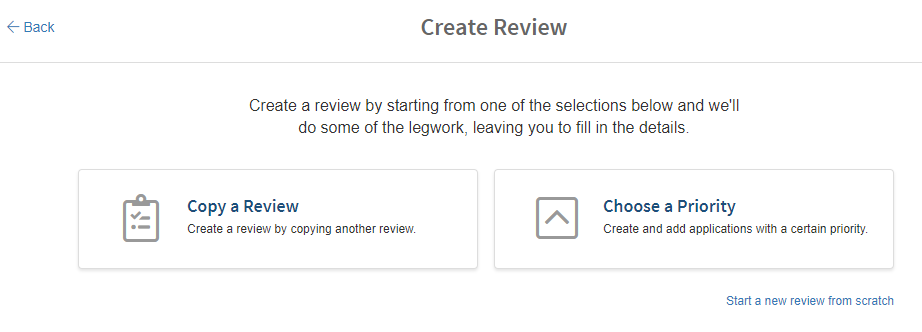
- From the Reviews list, select the Create Review button in the upper, right corner of the page. The Create Review page is displayed
-
To begin creating a review select one of the following options:
Option Description Copy a Review This option allows you to quickly create a new review by copying a review that has already been created. To use this option: (1) Select the Copy a Review area. The area expands to show the "Select a review" field. (2) Select the field to select the review you want to copy, and then select the Copy from Review button. A new review is created with the exact same applications and settings as the copied review. (3) Select the Get Started button. You may want to verify each of the options in the Settings tab as well as the applications in the Applications tab to make sure everything is set as you want it Choose a Priority This option allows you to quickly create a review that includes any applications with a specific priority level. To use this option: (1) Select the Choose a Priority area. The area expands to show a priority field. (2) Select the field to select a priority level and then select the Create using Priority button. (3) Select the Get Started button. If you select the Applications tab, you'll see that any application with the priority level you selected is already added to the list. Finish creating the review by completing the Settings tab Start a new review from scratch (link) This option allows you to create a brand-new review without having the system automatically enter any information for you -
Complete the information in the Settings tab.
- Select Save to save your changes. The review is set to Draft status. Additional changes may be made until the review is started.
-
Select the Applications tab. If you created a review by copying another review or if you created the review based on priority, verify that the applications and separation rules in this list are the ones you want to include in your review. If you created the review from scratch, you'll need to add each of the applications and separation rules you want to include
Note
If you haven't already imported the latest application data, don't forget to do that before the review is started.
-
When all changes have been made, you can start the review whenever you're ready