View or change responsibilities
The Responsibilities tab is used to assign responsibilities to team members and define who should be notified when specific events happen.
To view the Responsibilities tab, complete the following steps:
-
From the Applications list, select the application you want to view or change. The Applications / Details page appears.
-
Select the Responsibilities tab. This tab allows you to:
- Add or remove team members from responsibilities
- Define who receives event notifications, including email notifications and webhooks
Add or remove team members from responsibilities
Team members are people who have been added to the application as either an application manager or provision engineer. When an identity is added to a role, they become a team member of that role and are given the responsibilities associated with that role for the specific application. For example, if I add Sarah Jane to the Application Managers role for Active Directory, Sarah Jane is only able to perform application manager duties for Active Directory. She would not be an application manager for other applications unless she was also given responsibilities within those applications.
Select one of the following options for more information about each role:
Application Managers
Any identity in Permission Assist can be given the responsibility of being an Application Manager within an application. As an Application Manager, they will have access to the following:
- Review Items Taskboard - Application Managers have access to the Review Items Taskboard and can view/take action on items only for applications they manage
- Applications - Application Managers have access to the applications they manage within the Manage > Applications area and can import data if needed
- Access Models - Application Managers have access to access models if the applications they manage are included in an access model; they can allow or deny permissions and commit changes only for the applications they manage (not for the access models as a whole)
- Change Management Taskboard - Application Managers will be able to see remediation access requests related to the applications they manage. They cannot complete access requests unless they either belong to the Provision Team, they are a Provision Engineer for a specific application, or they are required to verify the remediation access request before the request can be considered complete (defined in the System Configuration > Taskboards > Access Requests area)
- Reports - Application Managers have limited access to generate reports for the applications they manage
Note
Application Managers may have access to other features within Permission Assist if they also belong to another group.
Provision Engineers
In Permission Assist, Provision Engineers are people who have responsibilities related to access requests. People can be given Provision Engineers responsibilities by doing either of the following:
- Assigning an identity to the Provision Team group within the System Configuration area. Identities who are members of the Provision Team group have full access to the features within the Change Management Taskboard and are able to take action on access requests for all applications. They do not have access to any other features within Permission Assist unless they also belong to another group
- Giving someone Provision Engineer responsibilities within an application. Identities who have been given provision engineer responsibilities for a specific application can only take action on access requests that relate to their assigned application(s). They cannot see or take action on any other access requests
Add a team member
To add a team member, complete the following steps:
-
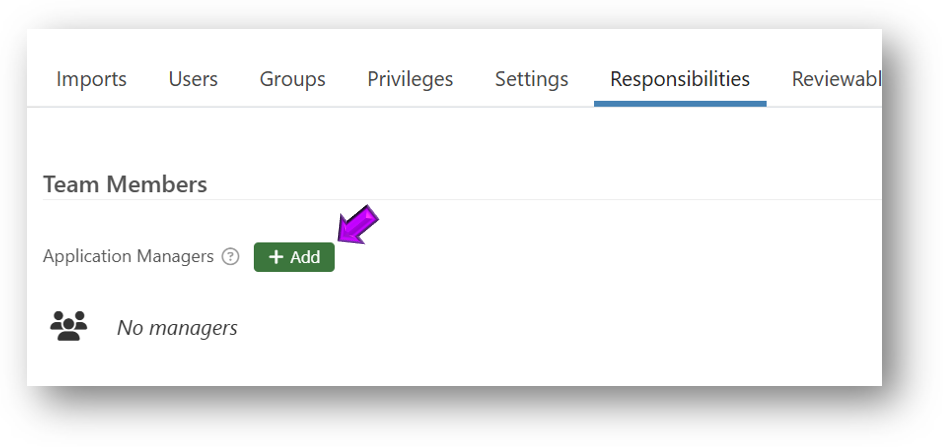
Point to the type of team member you want to add (Application Managers or Provision Engineers). The Add button appears.
-
Select the Add button.
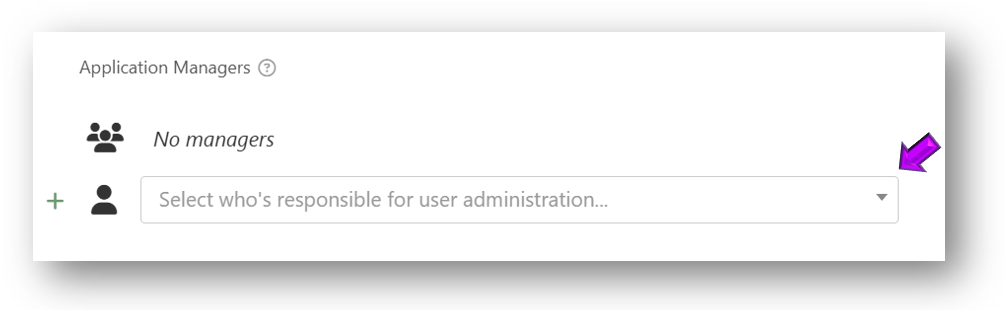
The "Select who's responsible..." field is displayed.
-
Select the Select who's responsible... field and pick an identity from the list. The identity is added and now has responsibility to act as the role to which they were assigned.
Tip
You can repeat this step to add additional identities to the role as needed.
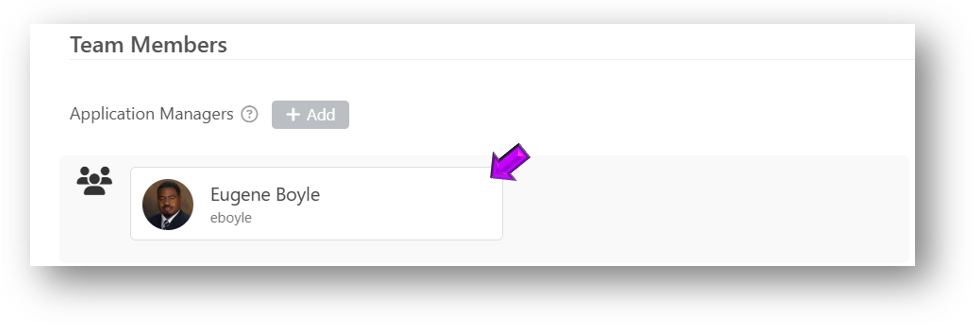
Remove a team member
To remove a team member, complete the following steps:
-
Point to the identity you want to remove.
-
Select the trash bin that appears in the upper right corner.
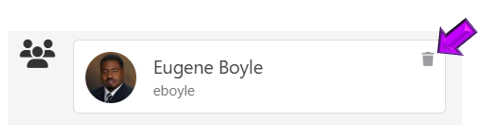
The identity is removed and no longer has responsibility to act as the role to which they were previously assigned.
Define who receives event notifications
Events are moments in time when something happens in Permission Assist, such as the moment an access request is created or the moment an access request moves from an approved status to an assigned status. The Responsibilities tab allows you to define who should receive notifications when an event occurs and what type of notification should be sent.
There are three types of event notifications:
| Type | Description |
|---|---|
| Notification | Sends an email to a person or role when an event occurs |
| Catch hook | Sends an HTTP POST request with a JSON payload to an external URL when an event occurs |
| System command | Runs a command-line program (batch file, PowerShell script, or executable) when an event occurs |
The following events are available:
| Event | Description |
|---|---|
| Access Request Created | An access request is created for this application |
| Access Request Assigned | An access request for this application is assigned to a Provision Engineer |
| Access Request Approved | An access request for this application is approved |
| Access Request Provisioning | An access request for this application moves to provisioning status |
| Access Request Resolved | An access request for this application is resolved |
| Access Request Reopened | A previously resolved access request for this application is reopened |
| Access Request Completed | An access request for this application is completed |
| Access Request Canceled | An access request for this application is canceled |
Add a notification
To add an email notification for an event, complete the following steps:
-
Point to an event. The Add button appears.
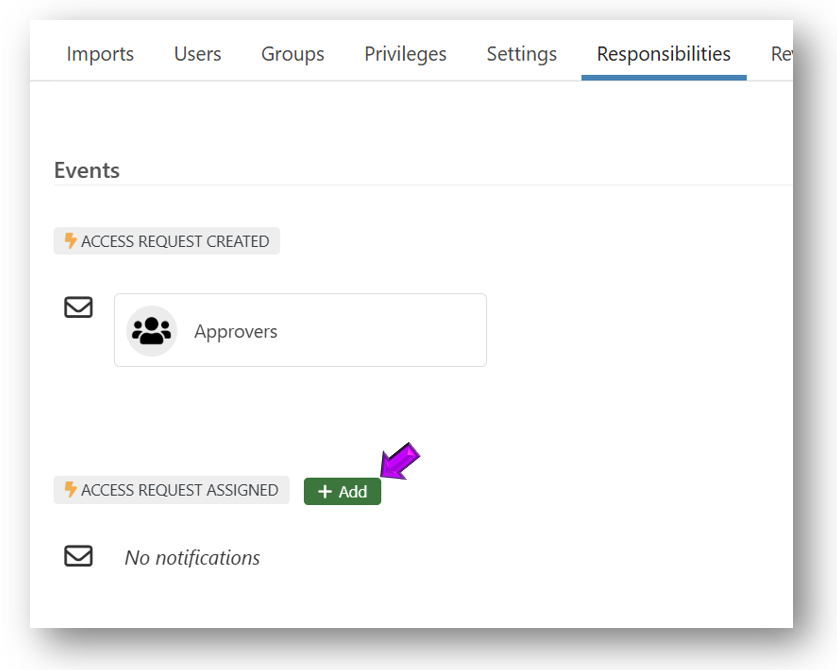
-
Select the Add button and pick Notification from the list.
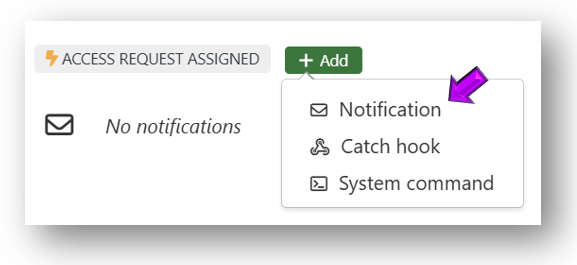
A new field is displayed and the Application Managers option is selected by default.
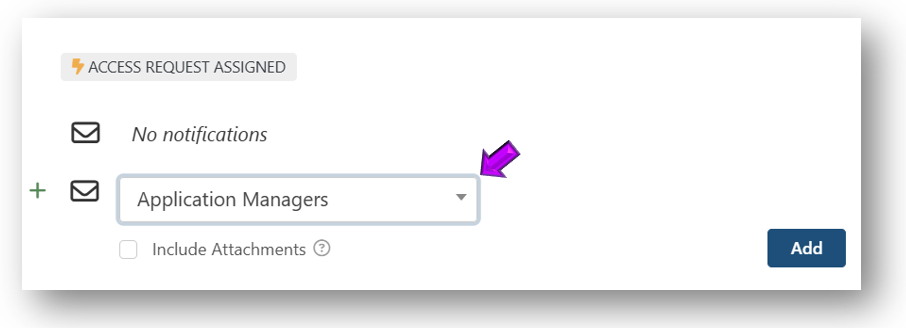
-
If you want the notification to go to a different team member, select the Application Managers field and pick a different option from the list. Options are organized under the following categories:
Note
The following options allow for flexibility in terms of who gets notified when an event occurs, but they do not authorize users to log into Permission Assist and view information they aren't already authorized to view. For example, if you send a department manager a notification when a personnel event is created, but the manager isn't a Personnel Manager, they will get the notification, but will not be able to log into Permission Assist and view the personnel event.
- Application Specific Roles — roles that have been defined within the application's Responsibilities tab
-
System Authorized Roles — roles that have been defined within System Configuration > System Authentication
Note
Administrators cannot receive these types of notifications. They only receive specific notifications related to the administration and configuration of Permission Assist.
-
Access Request Responders — roles that have been defined within System Configuration > Taskboards > Access Requests
- Other — if the person you want to notify is not in one of the other categories, you can use the options in this category to notify an individual identity or a specific email address
-
(Optional) Select the Include Attachments option to attach a detailed report to the email.
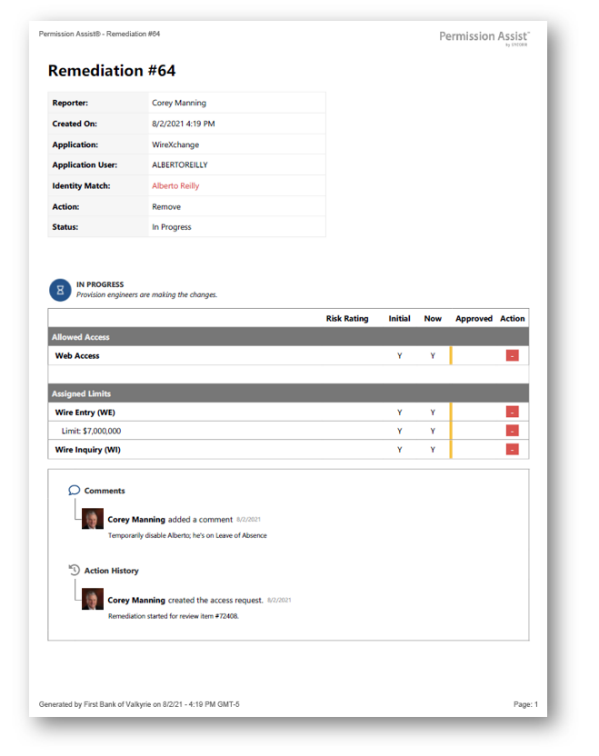
Note
This can be helpful if you are sending remediation notifications to an internal help desk team that does not have access to Permission Assist. Some events do not have reports that can be attached. This option can be selected even if the event does not have a report to attach; in these cases, the option is ignored.
-
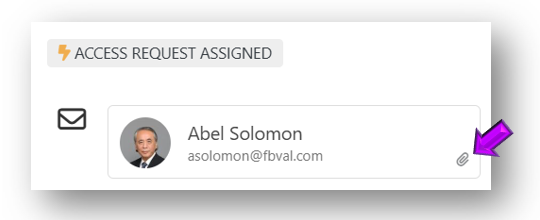
Select the Add button. The person or group is added and will receive a notification when the event occurs. If the Include Attachments option was selected, a paper clip is displayed in the lower right corner.
Add a webhook
Webhooks allow Permission Assist to send automated notifications to external systems when access request events occur. This is useful for integrating with ticketing systems, automation platforms, or other tools that need to respond to access request activity.
There are two types of webhooks:
- Catch hook — sends an HTTP POST request containing a JSON payload to a specified URL
- System command — runs a command-line program (such as a batch file, PowerShell script, or executable) and passes a callback URL as an argument
Add a catch hook
To add a catch hook to an event, complete the following steps:
-
Point to an event. The Add button appears.
-
Select the Add button and pick Catch hook from the list.
-
Enter the URL of the external system that should receive the webhook payload in the Endpoint field.
-
Select the Add button. The catch hook is saved. When the event occurs, Permission Assist sends an HTTP POST request with a JSON payload to the specified URL.
Note
The external system can send a response back to Permission Assist using the callback URL included in the webhook payload. Callback responses are logged in the Activity tab of the application.
For details about the payload structure and field descriptions, see Webhook payload reference.
Add a system command
To add a system command to an event, complete the following steps:
-
Point to an event. The Add button appears.
-
Select the Add button and pick System command from the list.
-
Enter the path to the program you want to run in the Command Path field. This can be a batch file, PowerShell script, or executable.
-
Select the Add button. The system command is saved. When the event occurs, Permission Assist runs the specified program and passes a callback URL as an argument.
Note
System commands have a 30-second timeout. If the program does not complete within 30 seconds, the process is stopped.
Remove a notification or webhook
To remove an event notification or webhook, complete the following steps:
-
Point to the item you want to remove.
-
Select the trash bin that appears in the upper right corner.
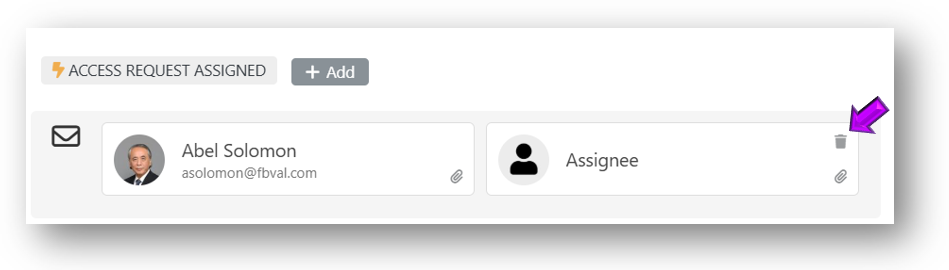
The item is removed. For notifications, the person or group will no longer receive an email when the event occurs. For webhooks, the external system will no longer receive data when the event occurs.