Change Management taskboard
The Change Management taskboard is the central workspace for Provision Engineers. Use it to view and complete access requests created from reviews, personnel events, or direct permission change requests. Personnel Managers can also use the taskboard to view and track the progress of personnel events.
Role access to the Change Management taskboard
| Permission Assist role | Access |
|---|---|
| Provision Team | Full access to all features. Can see and complete all access requests for all applications regardless of how the request was created |
| Security Team | Can see all access requests. Cannot complete requests unless they are also a Provision Team member, a Provision Engineer for the application, or a required responder for pre-approval or post-verification |
| Supervisors | Can see access requests related to their direct reports. Cannot complete requests unless they are also a Provision Team member, a Provision Engineer for the application, or a required responder. Surrogate supervisors can only see the items they sent to remediation |
| Application Managers | Can see access requests related to the applications they manage. Cannot complete requests unless they are also a Provision Team member, a Provision Engineer for the application, or a required responder |
| Defined Managers | Can see the items they sent to remediation. Cannot see access requests sent by others. Cannot complete requests unless they are also a Provision Team member, a Provision Engineer for the application, or a required responder |
| Personnel Managers | Can see the personnel events they created. Cannot see access requests created by others |
Opening the taskboard
To open the Change Management taskboard from the Home page, select Outstanding under the Access Requests heading.
To open the Change Management taskboard from any other page, go to the My Taskboards menu and select Access Requests. The Change Management taskboard is displayed.
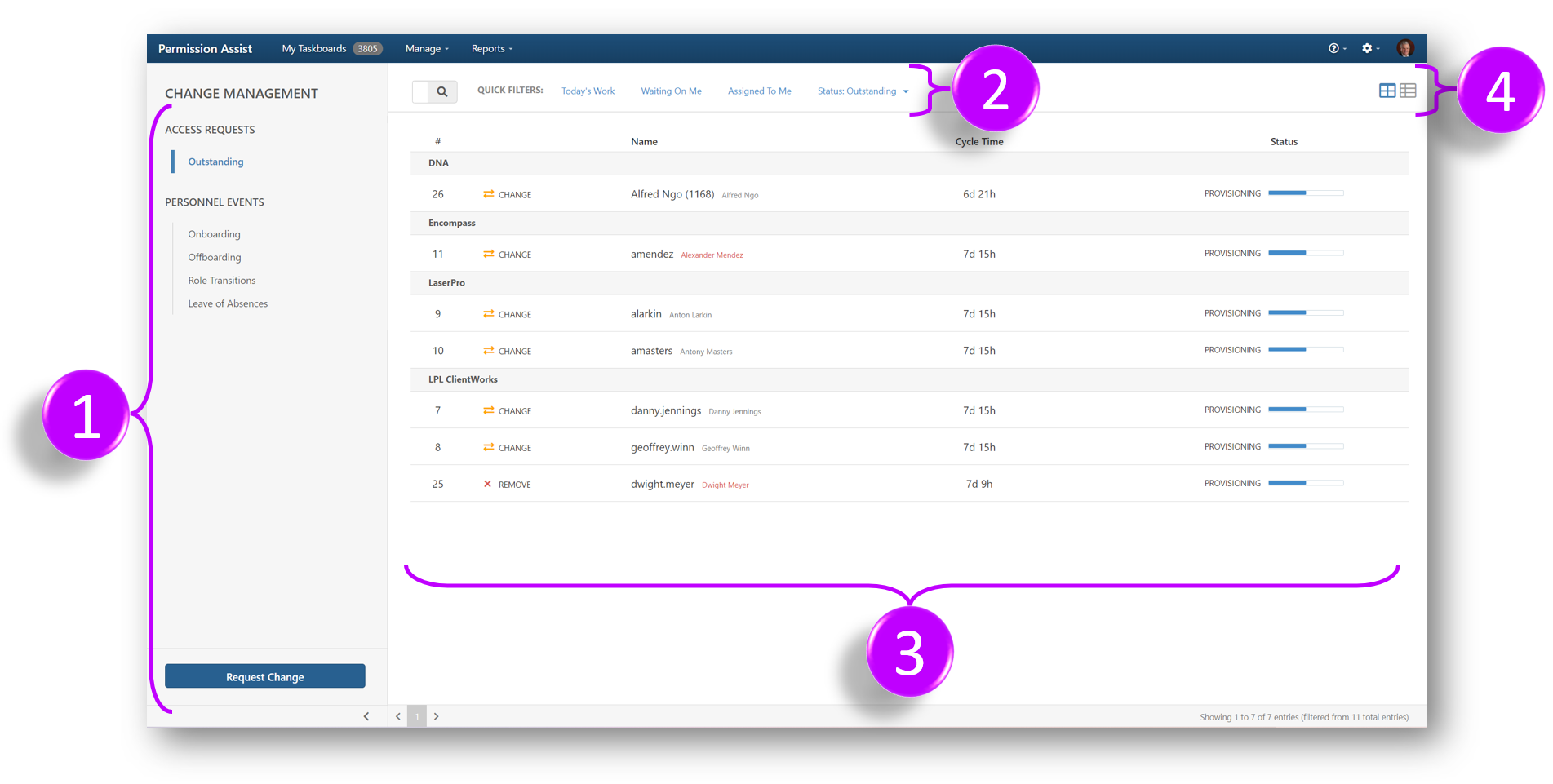
The taskboard is organized into the following areas:
| Area | Name |
|---|---|
| 1 | Requests and events menu |
| 2 | Search and quick filters |
| 3 | Access requests and events list |
| 4 | List view buttons |
Requests and events menu
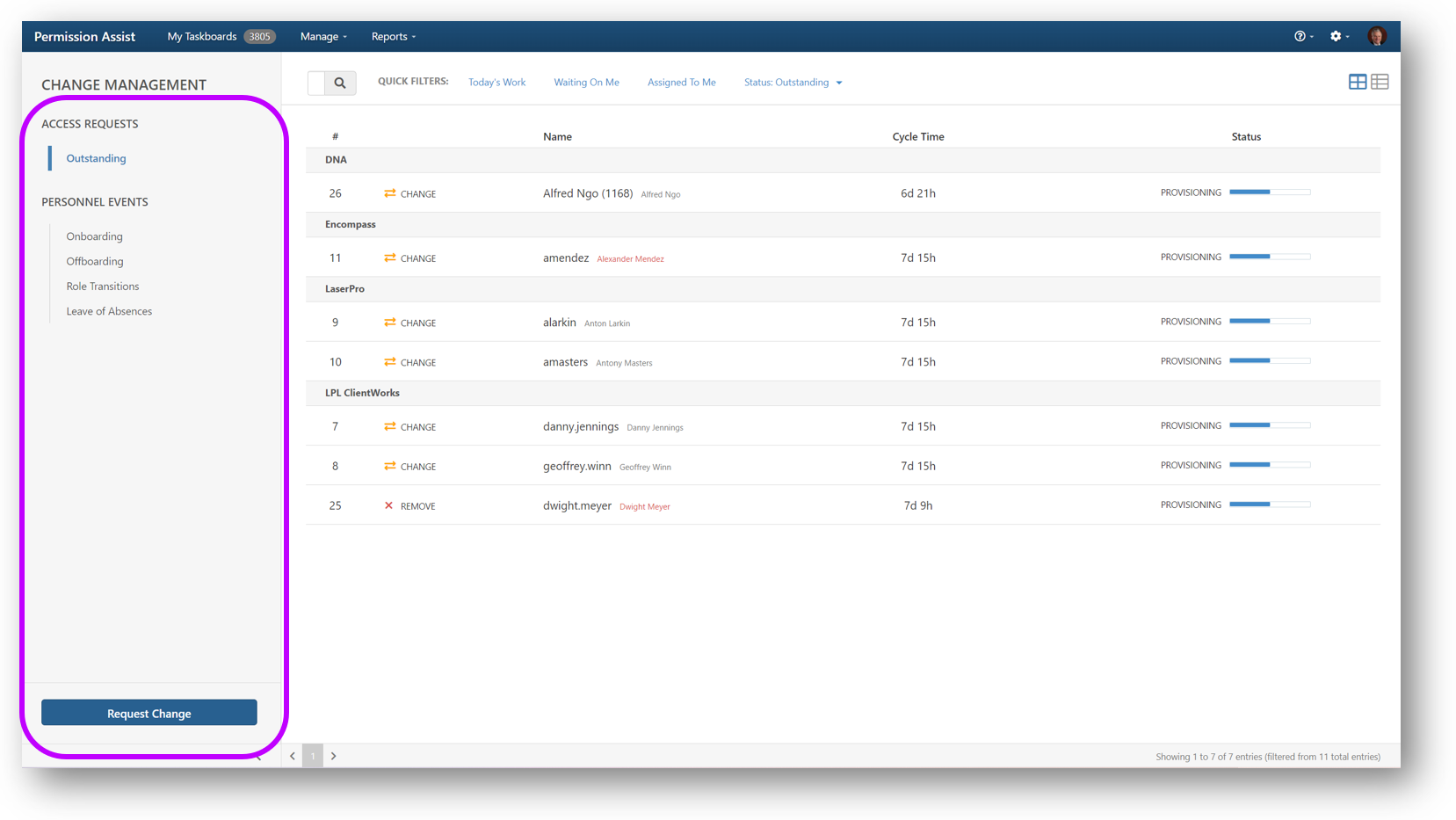
The menu on the left displays a list of outstanding access requests and personnel events.
Search and quick filters
| Feature | Description |
|---|---|
| Search | Enter the information you want to search for within the list. You can search by request number, first name, or last name. To search within a different application, leave the search text in the field and select another application |
Quick filters
Quick filters allow you to narrow the list of requests and events. When a quick filter is applied, a highlighted box appears around the filter. Filters can be combined. For example, you can select both Today's Work and Waiting On Me to see requests that were created today and require your input.
| Filter | Description |
|---|---|
| Status | By default, all outstanding access requests are displayed. Select this filter and pick a status from the list to show only requests in that status |
| Application | By default, all applications you have access to are displayed. Select this filter and pick an application from the list to show only requests for that application |
| Today's Work | Shows only recently created items |
| Waiting On Me | Shows only requests that require your input to be completed |
| Assigned To Me | Shows only items assigned to you |
Access requests and events list
The Change Management taskboard lists two types of items: access requests and personnel events.
Access requests
A list of outstanding access requests is displayed in the Access Requests area by default. You will only see the access requests that you are authorized to see or work on. By default, requests are grouped by application with the oldest requests displayed at the top.
List view buttons
The list of access requests can be displayed in either a grouped view or a list view. These options are not available for personnel events.
| View | Description |
|---|---|
| Grouped | Displays access requests grouped by application. Applications are ordered alphabetically with all related requests displayed below the application name |
| List | Displays a flat list of access requests in order of request number. You can sort by request number, application name, identity name, cycle time, or status by selecting any of the column headings |
Personnel events
If you are authorized to create or view personnel events, the Personnel Events area allows you to view events by type.
To view the details of a personnel event, complete the following steps:
-
Select one of the personnel event types (Onboarding, Offboarding, Role Transitions, or Leaves of Absence).
-
Select the event from the list. The details page is displayed.