Queues
The Queues page can be very helpful when you have a build or process that is taking longer than you expect. You can use this page to see which processes are holding others up or to cancel processes so other processes can take priority. Processes are categorized within the following tabs: Builds, Reports or Emails. Refer to each of the following sections for more information.
How to access this page
Go to the System Configuration cogwheel in the top right corner of Permission Assist and select Queues. The Queues page is displayed.
Builds
This tab allows you to view all queued processes for imports or reviews in the order they are being completed along with the current status. Selecting a process brings you to the build/import page, allowing you to see the details of the build or import process and cancel or continue the process as needed.
Reports
This tab allows you to view all reports that are in the process of being generated. Reports appear in the order they are being completed along with the current status (Pending or Building). To cancel a report, hover over the report and select the Delete button (displayed to the right of the Status column).
Emails
This tab allows you to view a list of all emails sent from Permission Assist. By default, emails appear in the order they were sent (Created column), but the list can be sorted by any of the column headings described below:
| Column | Description |
|---|---|
| To | Displays the email address of the person to which the email was sent |
| Subject | Displays the subject line of the email |
| Created | Displays the date and time the email was sent |
| Sent | Indicates whether the email has been sent. A green check mark ( ) means the email was sent successfully. A red circle with an exclamation mark ( ) means the email was sent successfully. A red circle with an exclamation mark ( ) means the email failed to send. If the column is blank, the email has not been sent ) means the email failed to send. If the column is blank, the email has not been sent |
Email details
Select an email within the list to view additional information. The Email Details panel is displayed to the right side of the page.
Info tab
The Info tab provides additional detail about the email.
| Label | Description |
|---|---|
| To | Displays the email address to which the email was sent |
| From | Displays the email address from which the email was sent |
| Subject | Displays the subject line of the email |
| Sent Date | Displays the date and time the email was sent successfully. If no date is displayed, it means the email has not yet been successfully sent |
| Attempted Send Date | Displays the last date and time Permission Assist attempted to send the email. If an email cannot be sent successfully, Permission Assist will try to resend the email periodically over the course of 3 days |
| Retain Until | The email will be retained within the Permission Assist database until this date. After this date, it will be removed |
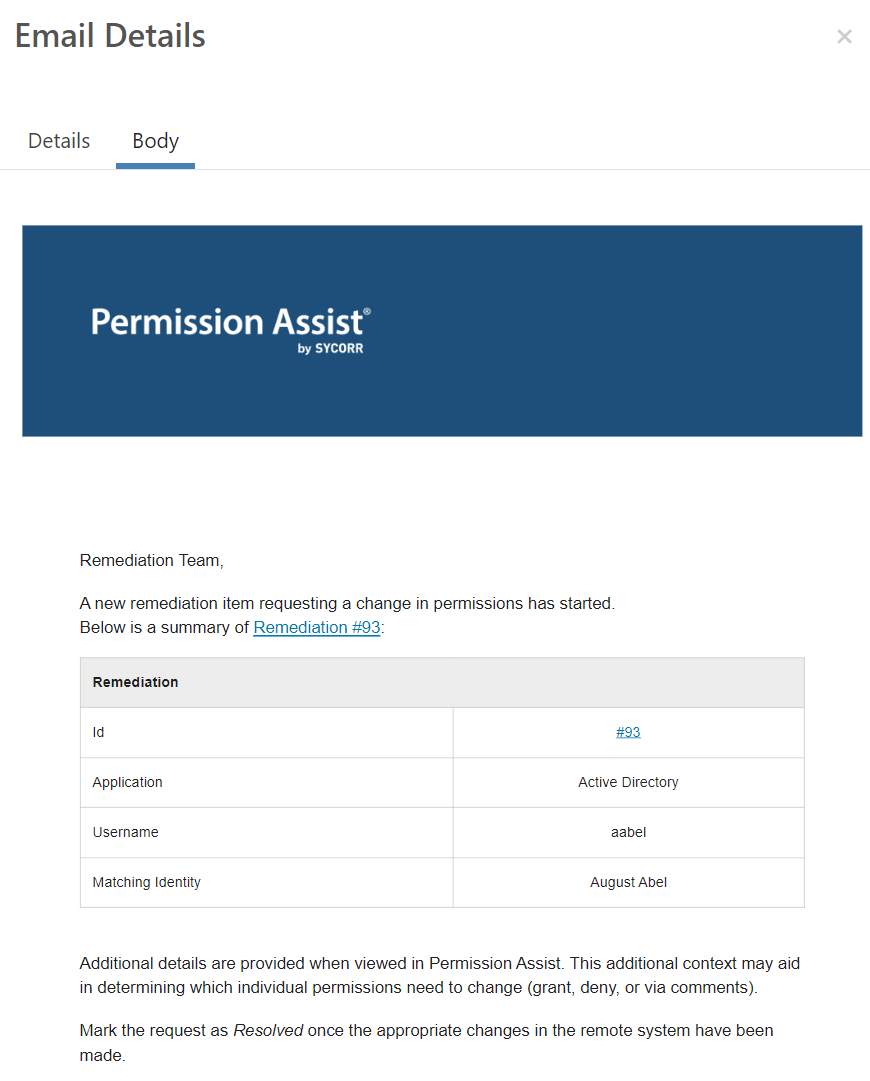
Body tab
The Body tab allows you to view the information contained in the email.
Events
This tab allows you to view a list of system events. The following information is displayed:
| Column | Description |
|---|---|
| Event | Displays a description of the event |
| Created | Displays the date the event was created |
| Handle Attempted | Displays the date the event was completed |
| Successful | Indicates whether the event was successful. If the event was completed, a green check mark is displayed |
| Details | Select an event within the list to view additional information. The Event Details panel is displayed to the right side of the page, which provides additional detail about the event |