Taskboards - Access requests
The Access Requests page (System Configuration > Taskboards > Access Requests) allows you to define Permission Assist settings that affect the Change Management taskboard. You can also define corrective control policies for access requests. Settings in this area affect all access requests in all reviews and personnel events.
Settings tab
This area allows you to determine which options are available within the Remediation/Change Management Taskboard.
Note
Changing these options may affect access requests that were initiated within a currently open review. When you have finished making changes, select the Save button. If you forget to save your changes before leaving this page, your changes will be lost.
Actions
| Option | Description |
|---|---|
| View Risk Ratings | Allows you to determine whether reviewers can see the risk ratings assigned to each privilege. By default, this field is set to "Nobody," meaning risk ratings are not displayed to anyone. To change this setting, select View Risk Ratings and then select a different option (Everyone, Security, or Trusted). When permitted, risk ratings are shown on the far-left column and indicated by their associated color (see example below). |
| Can Act on Own Access Requests | Allows you to determine whether reviewers can take action on access requests associated with their own privileges. By default, this field is set to "Everyone," meaning everyone can take action on access requests associated with their own privileges. To change who can take action on requests relating to their own permissions, select Can Act on Own Access Requests and then select a different option (Security, Trusted, or Nobody). Anyone who is restricted from reviewing their own permissions sees the approval restriction message displayed in the Review Buttons area of the Remediations/Change Management Taskboard (see image below). |
| Always show a warning message even if the user can act | This option works in conjunction with the Can Act on Own Access Requests option. When this option is selected, anyone who is allowed to take action on access requests related to their own permissions sees a warning message displayed in the Review Buttons area of the Remediations/Change Management Taskboard (see image below). Selecting the I understand and wish to continue link at the bottom of this message allows the Provision Engineer to continue reviewing their own permissions and take action as needed. |
Risk rating colors
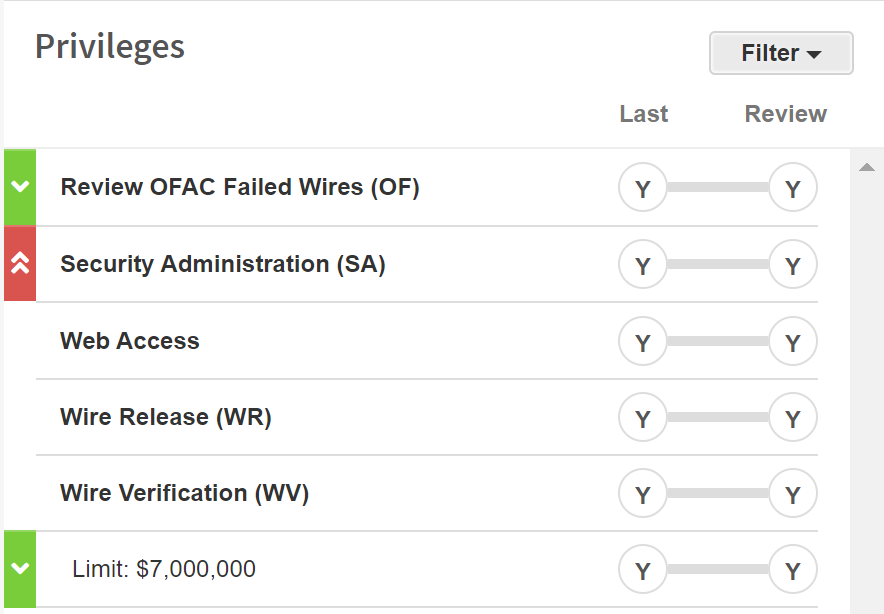
- Red -- Critical
- Orange -- High
- Green -- Moderate
- Blue -- Low
Approval restriction message

Warning message

Workflow tab
The Workflow tab allows you to define the corrective control policies for access requests. This is helpful when you have policies within your organization that require approval for changes in certain situations. These are just a few examples of when you may want to set up corrective control policies:
- You want to ensure someone approves an access request before it gets sent to the Provision Team
- You want to ensure someone verifies that access request changes were completed correctly
- You want people within certain roles to pre-approve or verify access requests at a specified level of risk. For example:
- You can set up a policy that requires an application owner to pre-approve any request related to a critical application
- You can set up a policy that requires a supervisor or department manager to approve requests that involve changes to critical permissions
To create a corrective control, enter information into each field as described below:
| Field | Description |
|---|---|
| Add [allowed watchers] | Determines the type of corrective control being created. Select this field to choose one of the following options: allowed watchers (default; the policy allows the selected role to view access requests), approver (the policy requires the selected role to approve access requests before they are sent to the Provision Team), or verifier (the policy requires the selected role to verify that the changes have been made properly before access requests are completed) |
| Rule for [Security Team] | Determines which role is required by the corrective control policy. Select this field to pick the role. |
| Add Rule | When the policy is defined as you would like, select the Add Rule link to add the rule below, where it can be further defined. |
Allowed watchers
This area displays the allowed watchers rules/policies that have been added. Allowed watchers can view access requests, but they cannot take action on requests unless they have another authority that allows them to take action.
For each required control, enter information in the following fields as needed to define requirements:
| Field | Description |
|---|---|
| Are [always] | Determines whether the selected role is always able or conditionally able to view access requests. Always (default) means a person in this role can always view access requests. Conditionally means a person in this role can view access requests if certain conditions are met. |
| Required if present | Allowed watchers are always considered "required if present," which means the rule applies unless the selected role does not exist. For example, if you add a rule that says the Department Manager is an allowed watcher, the rule is only enforced if a Department Manager has been defined. |
| When the [application] | This field appears when the Are [always] field is changed to "conditionally." By default, this field is set to "application," which means the role can view access requests when an application has a certain priority level (defined in the has a priority of field) or higher. If set to "privilege," the role can view access requests when a privilege has a certain priority level or higher. |
| Has a priority of [None] | This field appears when the Are [always] field is changed to "conditionally." By default, set to "None," meaning the role can view access requests when the application or privilege has a priority/risk rating of "None" or higher. To specify a different priority, select [None] and then select a priority level from the list. |
Pre-work approval
This area displays the pre-work approval rules/policies that have been added. For each required control, enter information into the following fields as needed:
| Field | Description |
|---|---|
| At least [one] | When adding a new rule, this field is set to "one" by default, meaning at least one person within this role is required. Some roles allow you to select two. Selecting "two" ensures that at least two people within the role pre-approve each access request. This option is not available when adding rules for Supervisors, Area Reviewers, Reporters, or any of the Defined Managers. |
| Is/Are [always] | Determines whether pre-approval is always required or conditionally required. Always (default) means a person in this role must approve access requests before the Provision Team member can take action. Conditionally means a person in this role must pre-approve access requests only if certain conditions are met. |
| Required | For Security Team members, this is the only option. Other roles may be set to Required (the role must pre-approve without exception; if no one fills that role, someone must be assigned) or Required if present (only required if someone exists within the role). |
| When the [application] | This field appears when Is/Are [always] is set to "conditionally." Select Application (default; pre-approval required when the request relates to an application of a certain priority or higher) or Privilege (pre-approval required when a user has access to privileges of a certain priority). |
| Has a priority of [None] | This field appears when Is/Are [always] is set to "conditionally." By default, set to "None." Select a different priority level from the list as needed. |
Note
Permissions must be risk rated before the review is started in order for this control to be applied properly.
Provisioning
This area allows you to define which Provision Engineers are required to respond to access requests, and as a result, which Provision Engineers are emailed when an access request is created.
| Option | Description |
|---|---|
| All | This option is selected by default. When selected, all Provision Engineers (regardless of whether they are defined in the System Authentication area or at the application level) are considered a potential responder to an access request. |
| Application Only | When selected, the Provision Engineers defined at the application level (in the Application > Responsibilities tab) are considered the required responders to an access request for their applications. If an application does not have any defined Provision Engineers, the Provision Engineers defined in System Configuration > System Authentication > Provision Team become the required responders. |
Post-work verification
This area displays the post-work verification rules/policies that have been added. For each required control, enter information into the following fields as needed:
| Field | Description |
|---|---|
| At least [one] | When adding a new rule, this field is set to "one" by default, meaning at least one person within this role is required. Some roles allow you to select two. Selecting "two" ensures that at least two people within the role verify each access request after the Provision Team has completed their work. This option is not available when adding rules for Supervisors, Area Reviewers, Reporters, or any of the Defined Managers. |
| Is/Are [always] | Determines whether post-verification is always required or conditionally required. Always (default) means a person in this role must verify access requests after the Provision Team member completes their work. Conditionally means a person in this role must verify access requests only if certain conditions are met. |
| Required | For Security Team members, this is the only option. Other roles may be set to Required (the role must verify without exception) or Required if present (only required if someone exists within the role). |
| When the [application] | This field appears when Is/Are [always] is set to "conditionally." Select Application (default; verification required when the request relates to an application of a certain priority or higher) or Privilege (verification required when a user has access to privileges of a certain priority). |
| Has a priority of [None] | This field appears when Is/Are [always] is set to "conditionally." By default, set to "None." Select a different priority level from the list as needed. |
Note
Permissions must be risk rated before the review is started in order for this control to be applied properly.