Access models details
The Access Models / Details page allows you to view more detailed review information. Some of the information within this area can be changed depending on the status of the review.
To open the Access Models / Details page:
- From the Access Models list, select the access model you want to view. The access model's detail page is displayed
Refer to the following sections for more information about each tab:
Modeling tab
When the Access Models / Details page is displayed, the Modeling tab is selected by default (see picture below).
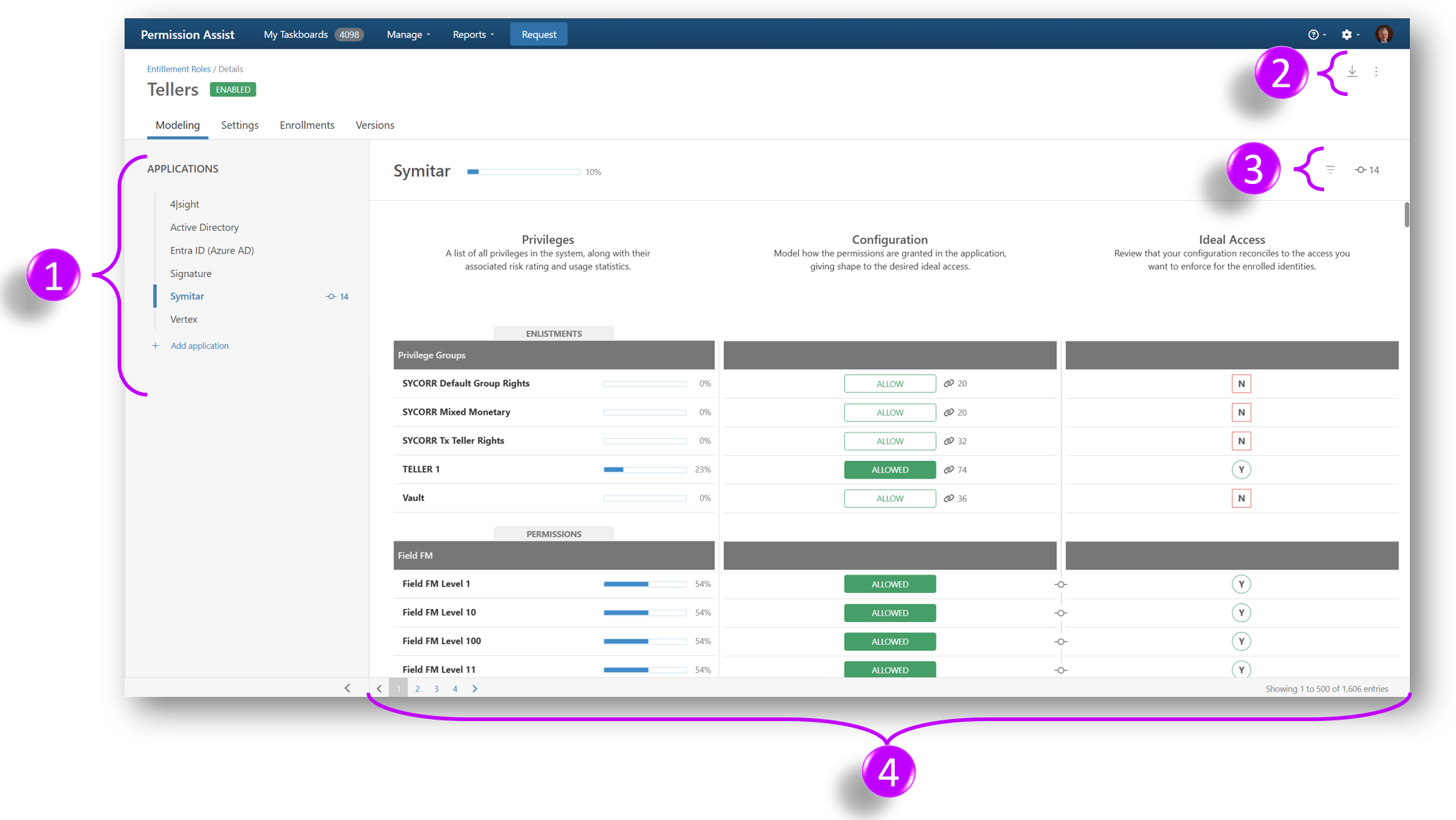
Select one of the following options to learn more about each of the numbered areas on the tab:
| 1 | Applications list | 2 | Export and Actions |
|---|---|---|---|
| 3 | Filter button | 4 | Privileges, Configuration, and Ideal Access |
Applications list
This area displays a list of applications that are considered allowed by the access model. Applications can either be added or removed from the access model manually or you can have Permission Assist recommend changes.
Export and actions buttons
EXPORT:
| Option | Description |
|---|---|
| Excel | Allows you to download the Access Models Details report which provides detailed information about the access model, the enrolled identities, and the permissions in either Excel or PDF format. |
| (Same as above) |
ACTIONS:
| Option | Description |
|---|---|
| Recommend Changes | Use this option if you want Permission Assist to recommend changes to the access model based on the most recent import data and participation. |
Filter button
The filter button in the upper right corner of the tab allows you to change the list of permissions displayed based on the selected criteria. By default, all permissions are displayed. To filter the list, select the filter button and pick one or more of the following options.
Note
If you select more than one option, each option becomes an additional criteria that must be met for a permission to be displayed. For example, if you select the Only Recommended and the Only Configured options, a permission must be both recommended and configured to be displayed in the list.
| Filter | Action |
|---|---|
| Recommended | When selected, this option shows the permissions that are recommended to be allowed based on a participation of 65% or more. |
| Configured | When selected, this option shows the permissions that have been granted through the modeling of ideal access. Permissions that have been configured will show as "Allowed".  |
| Changed | When selected, this option shows the permissions that have been changed since the last committed version of the application within the access model. Permissions that have changed but not yet committed are indicated with a change symbol between the Configuration and Ideal Access columns.  |
| New | When selected, this option shows the permissions that are new as of the most recent import. |
| Unused | By default, all permissions are displayed. When selected, this option shows any permissions that have 0% participation, meaning no one who is enrolled in the access model has been assigned that permission within the application. 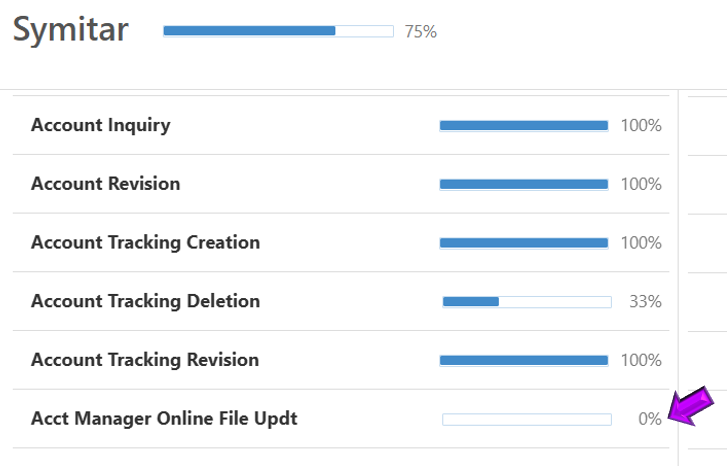 |
| Absent | When selected, this option shows permissions that Permission Assist has seen before, but no longer sees as of the most recent import (for example, permissions that used to exist but don't anymore). |
Privileges, configuration, and ideal access
The permissions for the selected application are displayed in this area on the right side of the page. Within this area, there are three columns of information: Privileges, Configuration, and Ideal Access.
| Column | Description |
|---|---|
| Privileges | Displays a list of all permissions within the application and the percentage of participation for each permission. To see whether a specific identity has a permission or not, select the permission. The Privilege Enrollments page is displayed, which provides a list of all identities in the access model. 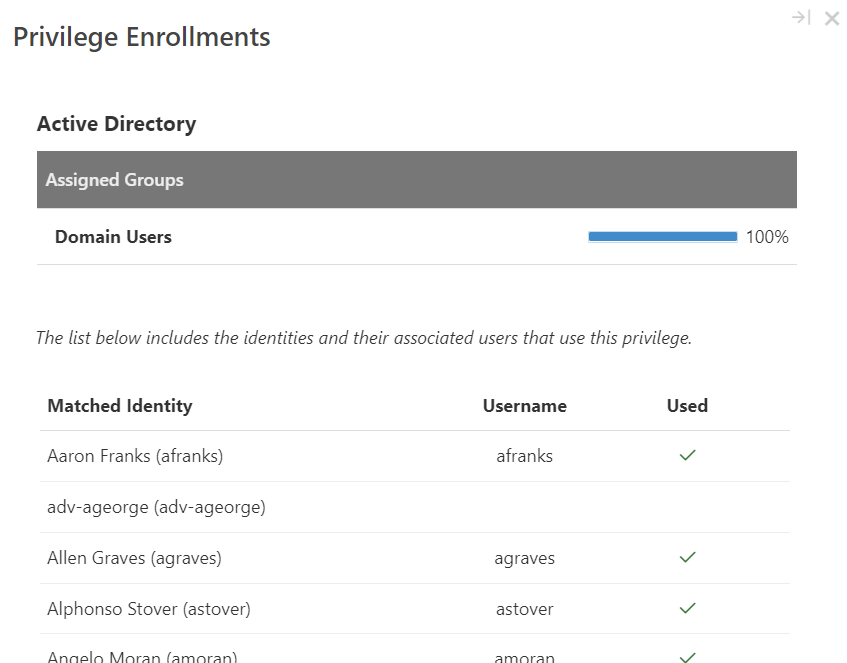 If an identity has the permission, the Used column displays a check mark. If the Identity does not have the privilege, the Used column is blank. If an identity has the permission, the Used column displays a check mark. If the Identity does not have the privilege, the Used column is blank. |
| Configuration | Allows you to model ideal configuration for each application within the access model. Permission Assist can help you model ideal configuration based on participation; however, you can also manually model ideal configuration by selecting one of the following buttons. |
| Ideal Access | This column shows whether the configured access results in an allowed access or denied access to each permission in the access model. |
Configuration options:
| Option | Description |
|---|---|
Allow  |
When the Allow button is displayed, it means the permission is not allowed according to the access model. To allow the permission, select the Allow button. After selecting the Allow button, the Allowed button is displayed. |
Allowed  |
When the Allowed button is displayed, it means the permission is allowed for anyone enrolled in the access model. To remove the configuration, select the Allowed button. After selecting the Allowed button, the Allow button is displayed, which means the permission is not modeled as ideal access for this access model. NOTE: If a group enlistment is allowed due to inheritance through another group enlistment, it cannot be overridden and denied. |
Inherit  |
When a permission can be inherited from a group, but access to a group that includes this permission has not yet been granted, the Inherit button is displayed. To allow this permission, select an appropriate group enlistment that includes this permission and the permission will be granted through inheritance. If needed, you can override this, and explicitly assign this permission in some situations. |
Inherited  |
When a permission is being inherited from a group, the Inherited button is displayed. |
Deny  |
When a permission either is inherited or has the potential to be inherited, but is explicitly denied instead, the Deny button is displayed. |
Image descriptions:
| Image | Description |
|---|---|
Inheritance  |
When the inheritance image is displayed beside a button along with a number, it means that if the permission is allowed, additional permissions will also be inherited. If the image is displayed on the button rather than beside the button, it means the permission either is or can be inherited from a group. If the permission is allowed vs inherited, it could also indicate that the permission is a group that is allowed because it's inherited through being part of another group. |
Broken Inheritance  |
When the broken inheritance image is displayed, it means that the permission could have been inherited from a group, but it was overridden and explicitly allowed. Changing the group-level permissions will no longer affect this permission. |
Note
If an identity matches to multiple access models, their ultimate access across all access models is not reflected in the Ideal Access column. This column represents configured access for this access model only. Permission Assist will resolve access across all access models when needed (reviews, personnel events, etc).
Settings tab
The Settings tab defines some basic information, such as name and description, as well as other important information such as the conditions used to determine enrollment.
| Field/Option | Description |
|---|---|
| Name | Enter a descriptive name of up to 650 characters for the access model. |
| Description | Enter a longer more descriptive explanation of the access model. |
| Owner | Within Permission Assist, an access model owner may not always be the one making decisions about every application within the access model, but they are the person ultimately responsible for making sure the access model is set up and properly managed. For example, the owner may have application owners or a "change management committee" decide which permissions are allowed or denied for each application. In these cases, the access model owner would still oversee the process and make sure the access models are properly defined, committed, and enabled within Permission Assist. Select this field to pick the owner from the list. |
| Conditions | Conditions are used to define who is automatically enrolled or who can be optionally enrolled in the access model. The Conditions area displays the conditions that have already been added to the access model and allows you to add, change, or remove conditions. 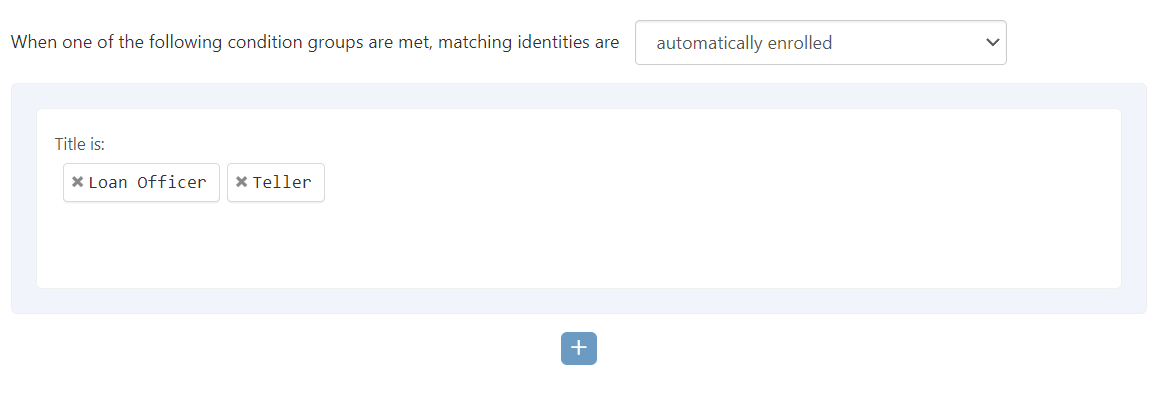 |
| Enabled | Select this option to enable or disable the access model. Access models are included in reviews if they are enabled at the time the review is started. When the access model is enabled, they can be used in reviews and when creating personnel events. Within a review, reviewers will see both a Review column and an Allowed column. The Allowed column shows whether the permission is allowed based on the access model(s) the user's matched identity is enrolled in. 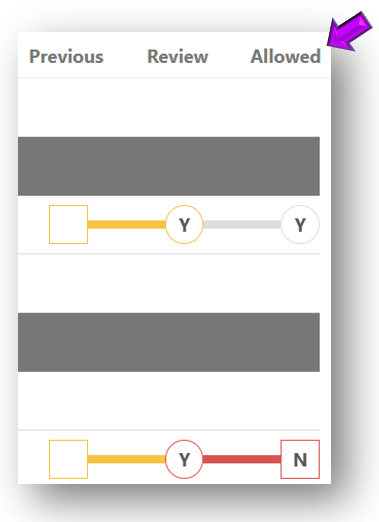 Disabling the access model will prevent the access model from being used for personnel events or future reviews, but it will not remove it from reviews that have already been started. |
Enrollments tab
The Enrollments tab displays a list of identities that are enrolled in the access model.
When an active Identity is added to a role, they are considered "enrolled" in the access model. Identities are usually automatically enrolled based on the conditions defined within the Settings tab of the access model. For more information about changing the conditions of an access model, refer to Add or change conditions of an access model.
If you have a special project or situation, you can also manually add identities to the access model.
Note
If you've recently made a change to an identity and you're noticing the changes are not yet reflected in the role, keep in mind that Identities are automatically updated daily based on the schedule set up in the Settings tab of the Directory Source. If you'd like to see the changes immediately, update the directory source manually.
Versions tab
The Versions tab allows you to view, track, and commit changes made to access models.
For more information, refer to: View and commit access model versions