Taskboards - Reviews
The Reviews page (System Configuration > Taskboards > Reviews) allows you to define Permission Assist settings that affect the Review Items taskboard. You can also define corrective control policies for access requests. Settings in this area affect all access requests in all reviews and personnel events.
| Option | Description |
|---|---|
| Reassign Identity | Allows you to determine who can reassign identities within the review using the Reassign Identity option. By default, this field is set to "Everyone," meaning all Permission Assist users can reassign identities if needed. To restrict access to this option, select Reassign Identity and then select a different option (Nobody, Security, or Trusted) from the list. |
| Reassign Review Supervisor | Allows you to determine who can reassign supervisors within the review using the Reassign Supervisor option. By default, this field is set to "Everyone," meaning all Permission Assist users can reassign supervisors if needed. To restrict access to this option, select Reassign Review Supervisor and then select a different option (Nobody, Security, or Trusted) from the list. |
| Add Reviewer | Allows you to determine who can invite someone into the review to comment on or take action on review items as a specific role. For example, if a supervisor normally reviews their direct reports but would like to invite their department manager or application owner to comment on or review a specific item, they can add a reviewer to the review item so that person can take action as needed. By default, this field is set to "Everyone," meaning all Permission Assist users can add reviewers to review items. To restrict access, select Add Reviewer and then select a different option (Nobody, Security, or Trusted) from the list. |
| View Risk Ratings | Allows you to determine who can see the risk ratings assigned to each privilege. By default, this field is set to "Nobody," meaning risk ratings are not displayed to anyone. To change this setting, select View Risk Ratings and then select a different option (Everyone, Security, or Trusted) from the list. When permitted, risk ratings are shown on the far-left column and indicated by their associated color (see example below). |
| View Pre-Approved Review Items | Allows you to determine whether reviewers can see pre-approved items within the Review Items Taskboard. By default, this field is set to "Everyone," meaning everyone can see pre-approved items. To change who can see pre-approved items, select View Pre-Approved Review Items and then select a different option (Security, Trusted, or Nobody) from the list. |
| Can Approve Own Review Items | Allows you to determine whether reviewers can take action on (approve or flag) their own permissions. By default, this field is set to "Everyone," meaning everyone can review and approve or flag their own permissions. To change who can review their own permissions, select Can Approve Own Review Items and then select a different option (Security, Trusted, or Nobody) from the list. Reviewers that are restricted from reviewing their own permissions see the approval restriction message displayed in the Review Buttons area of the Review Items Taskboard (see image below). |
| Always show a warning message even if the user can act | This option works in conjunction with the Can Approve Own Review Items option. When this option is selected, reviewers that are allowed to take action on their own permissions see a warning message displayed in the Review Buttons area of the Review Items Taskboard (see image below). Selecting the I understand and wish to continue link at the bottom of the message allows the reviewer to continue reviewing their own permissions and take action as needed. |
Risk rating colors
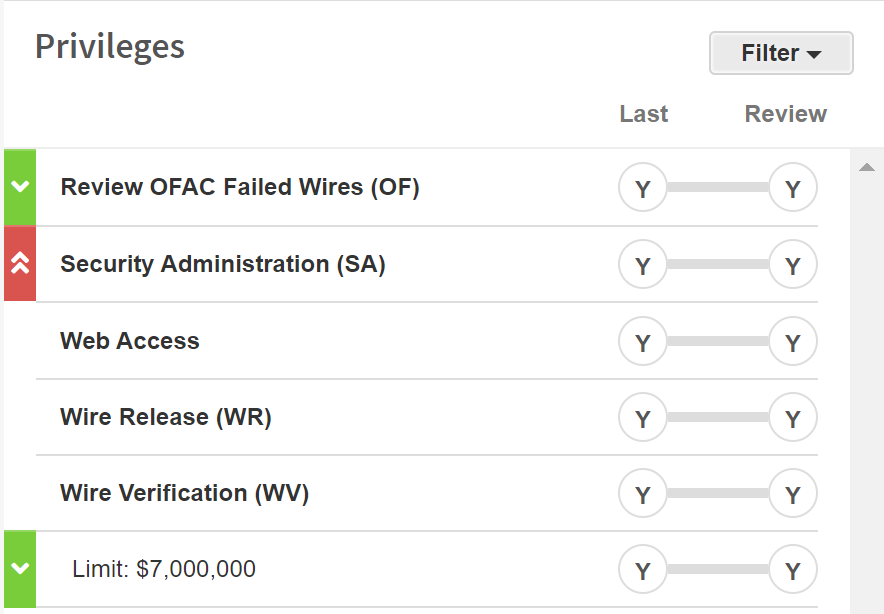
- Red -- Critical
- Orange -- High
- Green -- Moderate
- Blue -- Low
Approval restriction message

Warning message for own review items

Starting remediation
These settings determine workflows for the remediation process.
| Option | Description |
|---|---|
| Forced | Select this option if you want review items to be immediately sent to remediation when they are flagged. When this option is selected, no manual action is needed to send the item to remediation. |
| Optional | Select this option if you want reviewers to be able to flag review items without immediately sending the item to remediation. When this option is selected, the reviewer needs to manually start the remediation process. |
| None | Hides all remediation options. Select this option if you want to handle remediation outside of Permission Assist. Review items can still be flagged, and comments may be used to indicate items are sent to remediation. |
| Limit the remediation workflow to only show assigned permissions or ones allowed by matching access models | When reviewers request that a user's permissions be changed, they can request both the removal of existing privileges and the addition of new privileges. If you want to prevent reviewers from requesting additional privileges during the review process, select this option. When this option is selected, reviewers still have the ability to request the removal of existing privileges, but they cannot request new permissions unless they are allowed based on the user's access model. |