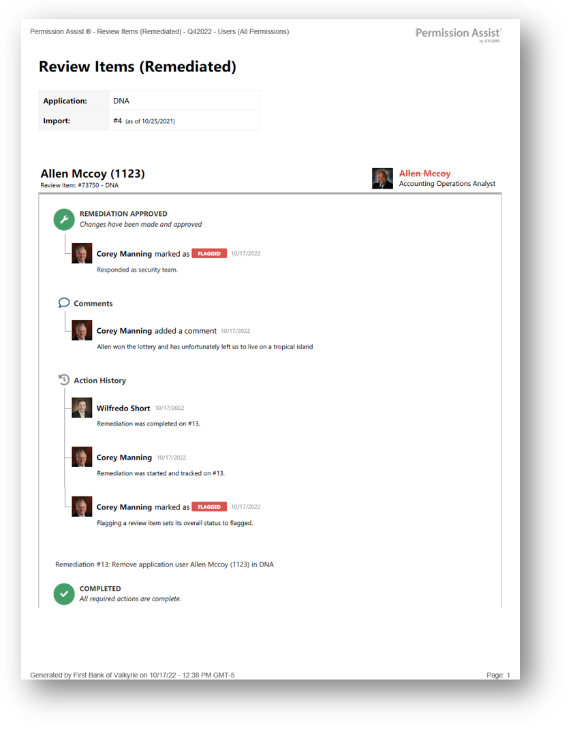
Remediated Review Items report
How to view or generate this report
Go to Reports > Reviews > Remediated.
The Remediated Review Items report is the complete record of items that were flagged in a review and then routed to an access request to fix. Unlike the other focused review-item reports, this one is paired with the access request that resolved each item — so the report shows the remediation number, the requested action (Add, Change, Remove, Suspend, Restore), the access request's status, and the merged action history from both the review item and its linked access request.
Use this report to confirm that every flagged item has a remediation in progress or already complete, and to capture the full provisioning narrative for audit.
When to use this report
- Closing-out a review. Confirm every flagged item has a remediation access request attached and track those access requests to completion.
- Audit response for remediations. When examiners ask "What happened to the access issues you found?", this report shows the linked access request and its outcome for every remediated item.
- Provisioning oversight. Identify remediation access requests that are still open, pending, or stalled — and route them to a Provision Engineer for follow-through.
- Compliance evidence. The merged comment thread (from both the review item and the access request) is the narrative auditors look for when reviewing how access issues were handled end-to-end.
What this report includes
Every review item in the selected review that has a linked remediation access request — that is, every item where an access request was created to fix the flagged finding. Items that were flagged but had no remediation request created are not included here; see the Flagged Review Items report for that broader view.
The report shows data from both the review item and its access request, and merges their comment and log history into a single chronological timeline per item.
Output formats
The report is exported from the Reports section of an open or completed review. Five export options are available:
| Format | Mode | Best for |
|---|---|---|
| Excel | Summary | A compact spreadsheet listing every remediated item with its access request status, one row each. |
| Excel | Details | A spreadsheet with a full block per item, including the merged action history from both the review item and the access request. |
| Excel | Flat | A single flat table with one row per action across both the review item and the access request. |
| Summary | A printable summary grouped by application. | |
| Details | A printable, per-item PDF with each item's merged action history. |
Excel — Summary
One row per remediated item.
| Column | Description |
|---|---|
| Review Item # | The review item's short identifier. |
| Application | The application the item belongs to, or the separation rule name for separation-rule items. |
| Name | The application username (or separation rule key). |
| Matched Identity | The matched identity name, if any. |
| Remediation # | The access request's short identifier — the number that tracks the fix. |
| Requested Action | The type of change the access request will apply: Add, Change, Remove, Suspend, or Restore. |
| Remediation Status | The access request's current status: Pending, Open, Resolved, Completed, Canceled, Scheduled, or Snoozed. |
| Created On | The date the access request was created. |
Excel — Details
A multi-section spreadsheet with one block per remediated item.
Item header (one block per item)
| Field | Description |
|---|---|
| Review Item | The review item's short identifier. |
| Remediation Item | The linked access request's short identifier. |
| Application or Separation Rule | The application name, or — for separation-rule items — the rule name. |
| Username | The application username (or separation rule key). |
| Matched Identity | The matched identity name, if any. |
| Remediation Status | The access request's current status. |
Action history (table beneath each item header)
The action history merges the review item's log and comments with the linked access request's log and comments, in chronological order.
| Column | Description |
|---|---|
| Review Item # | The review item's short identifier (repeated on each row). |
| Remediation # | The access request's short identifier (populated only for actions that originated on the access request). |
| Action | The action taken — for example, Created, Approved, Flagged, Comment. |
| Occurred On | The date and time the action took place, in your organization's configured time zone. |
| Actor | The name of the identity who took the action, or Permission Assist for system entries. |
| Info | The comment text or log message captured with the action. |
The first entry in each item's action history is its Created entry from the review item, marking when the item was compiled into the review.
Excel — Flat
A single flat table — one row per action across every remediated item. Each row repeats both the review item's and the access request's identifying information.
| Column | Description |
|---|---|
| Review Item # | The review item's short identifier. |
| Application | The application or separation rule name. |
| Name | The application username (or separation rule key). |
| Matched Identity | The matched identity name, if any. |
| Remediation # | The access request's short identifier (populated only for actions that originated on the access request). |
| Remediation Status | The access request's current status. |
| Requested Action | The type of change the access request will apply: Add, Change, Remove, Suspend, or Restore. |
| Action | The action taken — for example, Created, Approved, Flagged, Comment. |
| Occurred On | The date and time the action took place. |
| Actor | The name of the identity who took the action. |
| Acting As | The role under which the actor was eligible to act — for example, Supervisor, Application Manager, or one of the access request responder types. |
| Info | The comment text or log message captured with the action. |
PDF — Summary
A printable summary grouped by application. Each row shows the same fields as the Excel Summary mode (Review Item #, Application, Name, Matched Identity, Remediation #, Requested Action, Remediation Status, Created On).
PDF — Details
A printable, per-item PDF. For each remediated item, the PDF shows the item header (the same fields as the Excel Details header) followed by the merged action history from both the review item and the access request. When profile images are enabled in General Settings, actor avatars appear alongside each action.
Sample