Onboarding report
How to view or generate this report
Go to Reports > Personnel Events > Onboardings.
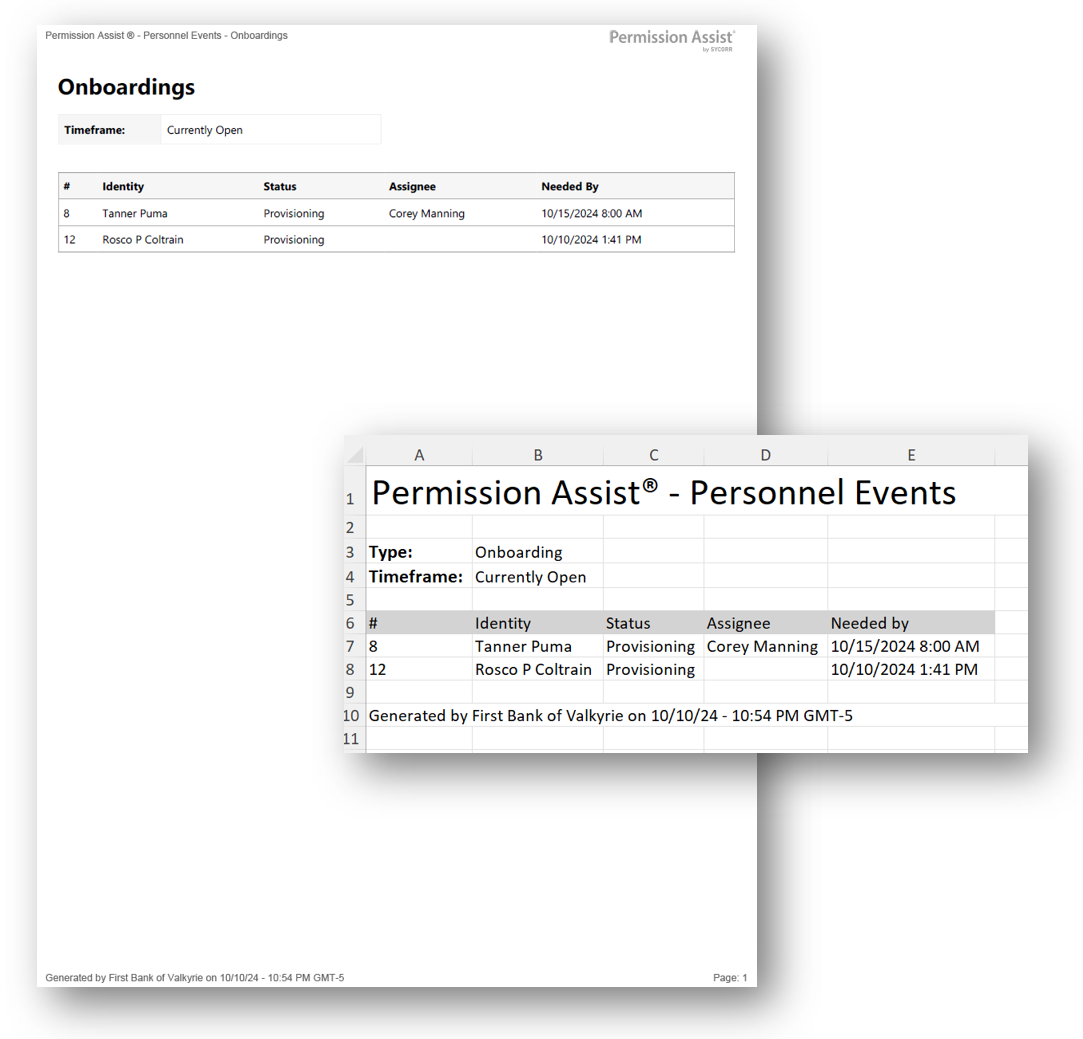
The Onboarding report lists onboarding personnel events with the identity each one applies to, the event's status, the assignee responsible for moving it forward, and the date access is needed by. Use it to see who is being brought onto the system right now (or who has been onboarded over the past year and a half) without digging through individual personnel-event records.
When to use this report
- Active-work tracking. Use the Currently Open time frame to see every onboarding that isn't done yet — useful for daily standups, weekly reviews, or escalation when a deadline is approaching.
- Hire-class audit. Use the Last 18 Months time frame to assemble a roster of recent hires for HR reconciliation or compliance review.
- Workload distribution. The Assignee column makes it easy to spot whether onboarding work is concentrated on one person.
- Audit response. Examiners often ask for a list of onboardings within a window. The Last 18 Months mode produces it directly.
Output formats
| Format | Notes |
|---|---|
| Excel | A single sheet with one Personnel Events table. |
| A printable document with the same table. |
The header at the top of every export shows the personnel event type ("Onboard") and the selected time frame.
Time frame
Pick one of the following when exporting:
| Time frame | What it includes |
|---|---|
| Currently Open | Onboarding events whose status is not Completed and not Canceled — the active work in progress. |
| Last 18 Months | Onboarding events created within the last 18 months, regardless of status. |
| All (default when neither time frame is selected) | Every onboarding event ever recorded. |
Columns
| Column | Description |
|---|---|
| # | The personnel event's short identifier. |
| Identity | The matched identity's short display name. |
| Status | The event's current status — see Status values below. |
| Assignee | The identity currently responsible for the active milestone. Blank when no assignee has been set. |
| Needed by | The date access is needed by, in your organization's configured time zone. Blank when no date has been set. |
Status values
The Status column shows user-friendly labels for the underlying access-request status:
| Status | Meaning |
|---|---|
| Needs Approval | The event is awaiting approval responses before provisioning can begin (underlying status: Pending). |
| Provisioning | Provisioning is in progress (underlying status: Open). |
| Verifying | Provisioning is complete and the event is awaiting verification responses (underlying status: Resolved). |
| Completed | The event is finished. |
| Canceled | The event was canceled before completion. |
| Scheduled | The event is scheduled to start at a future date. |
| Snoozed | The event is paused (used by Absence events whose end date is not yet known). |
Sample