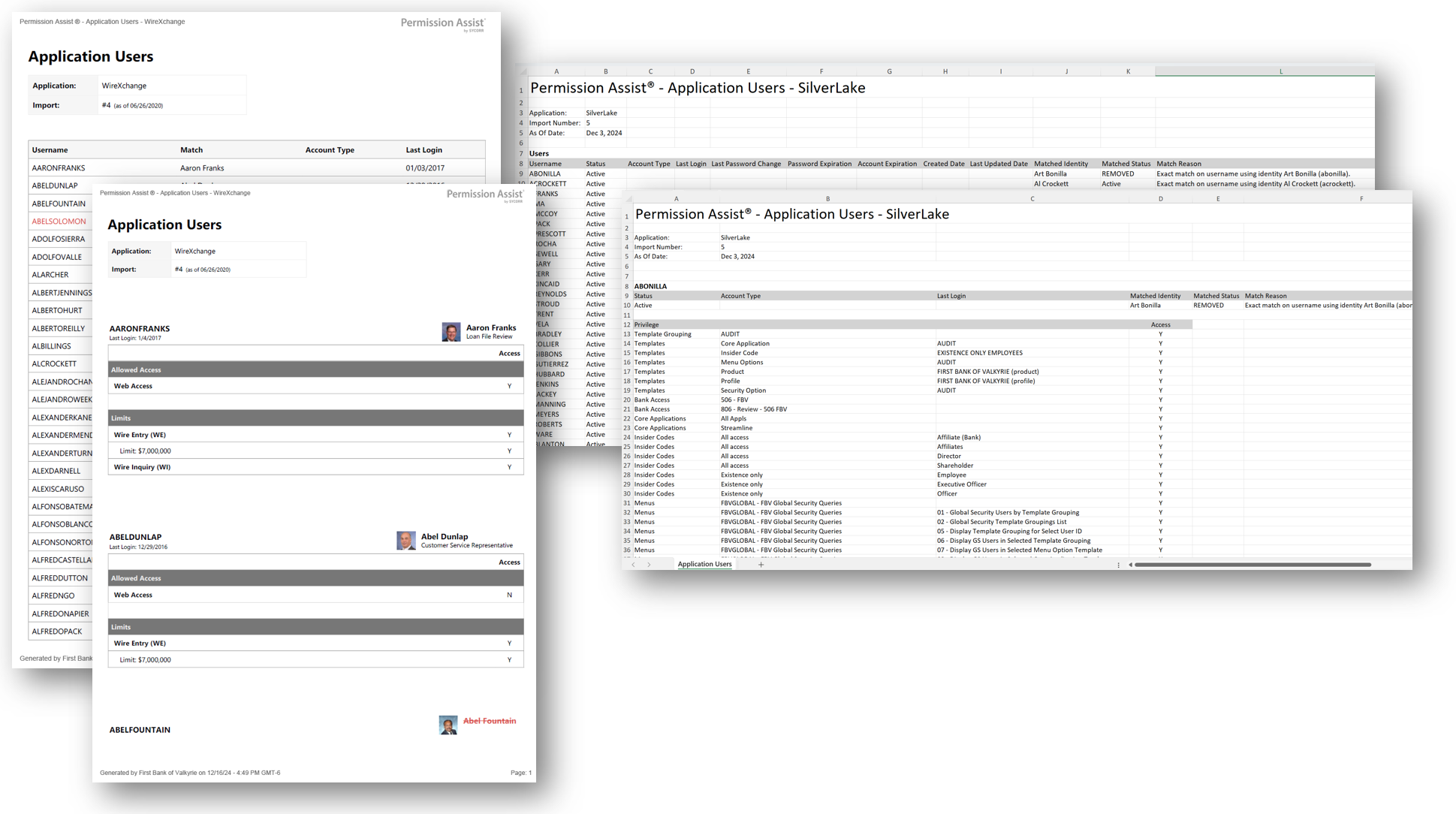
Application Users report
How to view or generate this report
Go to Reports > Applications > Application Users.
The Application Users report lists every user account in a selected application along with the identity each account is matched to and the credential-hygiene fields the connector imported. The report is available in two distinct modes — Summary and Details — and the two produce noticeably different output:
- Summary is one row per user with every credential field on the row. It's the report to run when you want a single spreadsheet of every account and its core attributes (account type, status, login dates, password and account expirations, metadata).
- Details is one section per user, focused on the per-account privilege list. The user-info table in Details mode is intentionally narrower than Summary — it omits the password/account/created/updated date columns so the privilege list has the page to itself.
The data behind the report comes from the most recent finished import for the application; the import number and as-of date are shown in the report header.
When to use this report
- Account inventory. Use Summary to produce a spreadsheet of every account in an application — the foundation for any cleanup, audit, or migration project.
- Credential-hygiene audit. Summary's password and account expiration columns let you spot accounts with stale or unset expirations at scale.
- Per-user privilege deep-dive. Use Details when you need to hand off a per-user privilege list for an application — for example, when an Application Manager wants to confirm what each of their users currently has.
- Search-scoped exports. The Search Term filter lets either mode be narrowed to specific users by username or matched identity name.
Output formats
The report is exported from an application's Reports section. Four export options are available:
| Format | Mode | Best for |
|---|---|---|
| Excel | Summary | A compact, one-row-per-user spreadsheet with every credential and metadata column. |
| Excel | Details | A per-user spreadsheet with the user's info and full privilege list. |
| Summary | A printable summary, one row per user. | |
| Details | A printable per-user document with each user's info and privilege list. |
Filter
| Option | Effect |
|---|---|
| Search Term | Narrows the report to users whose username or matched identity name contains the term. |
Sections
Every export starts with an Application header showing the application name, the import number, and the as-of date.
Excel — Summary
One row per application user.
| Column | Description |
|---|---|
| Username | The application username. |
| Status | The user's account status: Active, DISABLED, with (Locked) appended if the source application reports a locked account. |
| Account Type | The account type: Standard, Service, Shared, etc. Blank if the source application did not classify the account. |
| Last Login | The date of the user's most recent login to the application. Blank if the source application did not provide a value. |
| Last Password Change | The date the user's password was last changed. Blank if not provided. |
| Password Expiration | The date the user's password expires. Blank if not provided. |
| Account Expiration | The date the user's account expires. Blank if not provided. |
| Created Date | The date the user account was created in the source application. Blank if not provided. |
| Last Updated Date | The date the user account was last updated in the source application. Blank if not provided. |
| Matched Identity | The matched identity's name. Blank for ghost accounts. |
| Matched Status | The matched identity's status: Active, DISABLED, or REMOVED. Blank for ghost accounts. |
| Match Reason | A short description of how the identity match was determined (for example, the matching rule that fired). |
| Metadata | A flattened set of additional columns generated from custom metadata fields the connector attached to the user record. The exact columns vary by application. |
Excel — Details
One section per application user. Each section contains a username header line followed by a user-info table and a privileges table.
User info (per user)
| Column | Description |
|---|---|
| Status | The user's account status. |
| Account Type | The account type. |
| Last Login | The date of the user's most recent login. |
| Matched Identity | The matched identity's name. |
| Matched Status | The matched identity's status. |
| Match Reason | How the match was determined. |
Privileges (per user)
| Column | Description |
|---|---|
| Privilege | The privilege the user has on the application. Multi-level privilege paths are shown across this column and the two following label-less columns. |
| (Role) | The role portion of the privilege path. |
| (Privilege) | The leaf privilege portion of the path. |
| Access | Y if the user has the privilege, N if explicitly denied, blank if unspecified. |
If a user has no privileges, the privileges table shows a single row with "No privileges found."
PDF — Summary
A printable, one-row-per-user summary with the same fields shown in the Excel Summary mode.
PDF — Details
A printable, per-user document. For each user, the PDF shows the user's info followed by the privileges table. When profile images are enabled in General Settings, the matched identity's avatar appears in each user's section.
Sample